

In this guide, I will be talking about various tips and tricks that you can use to control your data usage. I will also list a few apps that will help you in achieving the same.
Data saver
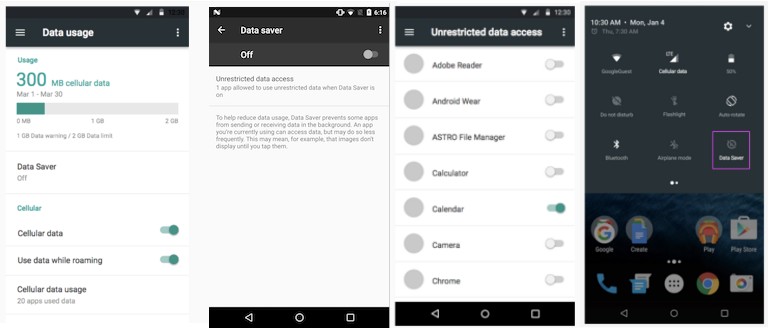
Android comes with its own Data Saver feature, which is quite helpful in controlling data usage. To cap your data usage, turn on Data Saver immediately. You can find it in Settings > Data Usage > Data Saver or some variation of this path depending on which smartphone you are using.
Restrict app updates on cellular data
With the number of updates app receive these days, if left unchecked, app updates itself will eat up most of your data package. To make sure, Google Play only updates applications automatically when there is a Wi-Fi connection present, go to Google Play settings and select the option ‘Auto-update apps over Wi-FI only’.
Use Lite version of apps
Some applications like Facebook are notorious data and battery hogs. So it is best to avoid using them on your smartphone. Facebook itself has released a Lite version of its Facebook app, which is meant for developing markets, and is a perfect alternative for anyone looking for a less resource hog Facebook app. You can also completely let go of Facebook app by installing something like Tinfoil for Facebook, which is basically a wrapper for Facebook mobile web version.
Facebook also offers a lite version of its Messenger app.
In addition, you can try Hermit lite apps browser, which provides quick access to tons of web apps in one place with some nifty added bonuses like ad blocker, malware protection etc.
Download videos for offline viewing

You can do the same for music with apps like Spotify, Gaana etc and for maps with Google Maps.
Use browsers with built-in data compression feature
Apart from apps, we use the most data on browsers. So if you are looking for ways to save data, why not use a browser that offers data savings by compressing webpages. Like Chrome, which claims to save up to 60% of data by compressing text, images, videos and websites without lowering the quality. All you have to do it enable data saver in Chrome settings.
Another browser with data compression support is Opera Mini, which was actually among the first to do so. You can also try Alibaba’s UC Browser.
Enable Wi-Fi Assistant
Wi-Fi Assistant is available for all in Android Oreo in select countries, however for Android versions 5.1 to 7.1, it can only be accessed on Pixel/ Nexus phones in select markets.

You can enable the feature by going to Settings > Google > Networking.
With free and secure Wi-Fi, your data allowance will remain intact.
These are some of the ways you can save data on your Android smartphones. If you know any more such tips and tricks, do let us know in the comments section.

